To check your Google ranking for free, use Google Search Console to read a page’s average position for a chosen query, country, device, and date range. Without property access, use a public ranking checker for a configured search snapshot.
A ranking number becomes useful when you know what produced it. Start with one page and one query, then save the measurement conditions so you can compare the next check fairly.
Choose a Free Way to Check Your Google Ranking
Start with a query the page should answer and an audience your business can serve. Moving up for an irrelevant phrase gives you little reason to invest more in that page; use the keyword-to-page guide if ownership is unclear.
Keep These Measurements Separate
- Search Console: an observed average across a selected period.
- Public rank checker: a snapshot under the tool’s configured conditions.
Manual search helps you inspect competing results and current search features. It supplies a view of that search moment, not a history of your rankings.
| Method | What You Can Learn | Access and Limits |
|---|---|---|
| Google Search Console | Average position for recorded impressions within your selected filters | Requires property access; some query data is withheld for privacy. |
| Public ranking checker | Where a domain appears in the results the tool checks | No website ownership required; location, device, result depth, and free allowances matter. |
| Manual Google search | What appears in your search at that moment | Location, language, device, time, and personalization can affect results. |
Search Console is Google’s free performance tool. A recurring rank tracker can save repeated observations, but you do not need one to complete this first check.
Keep the task focused on website results. Positions in Google Maps require a separate local SEO check.
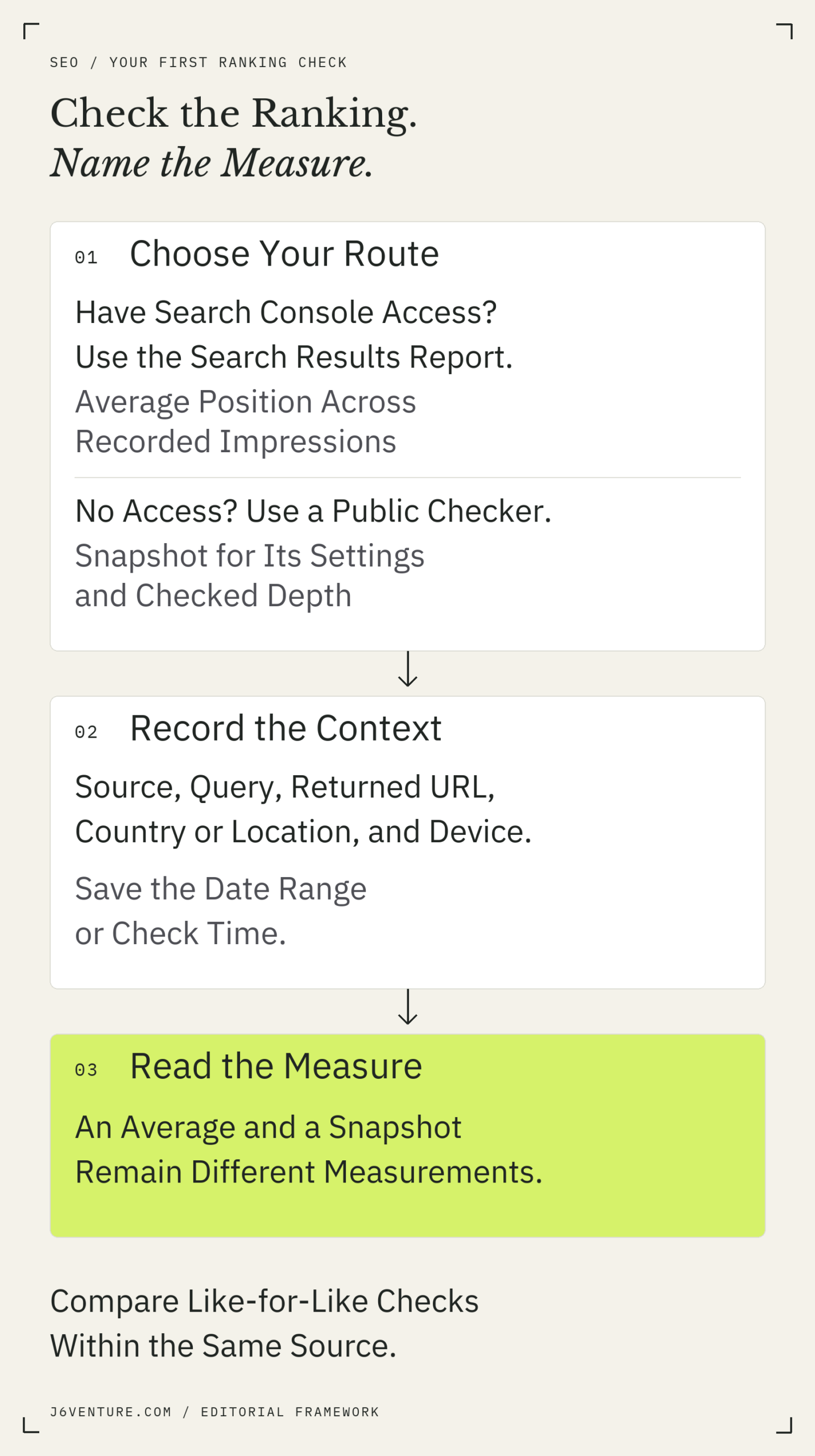
Two checking routes produce different measurements. Record the conditions before comparing results.
Check a Page’s Ranking in Google Search Console
Use the Search results report to connect a search query with the URL credited with its performance data. Start with the query, inspect its Pages tab, and then narrow the report to the page you want to assess. Country, device, search type, and dates define the scope of the number you will read.
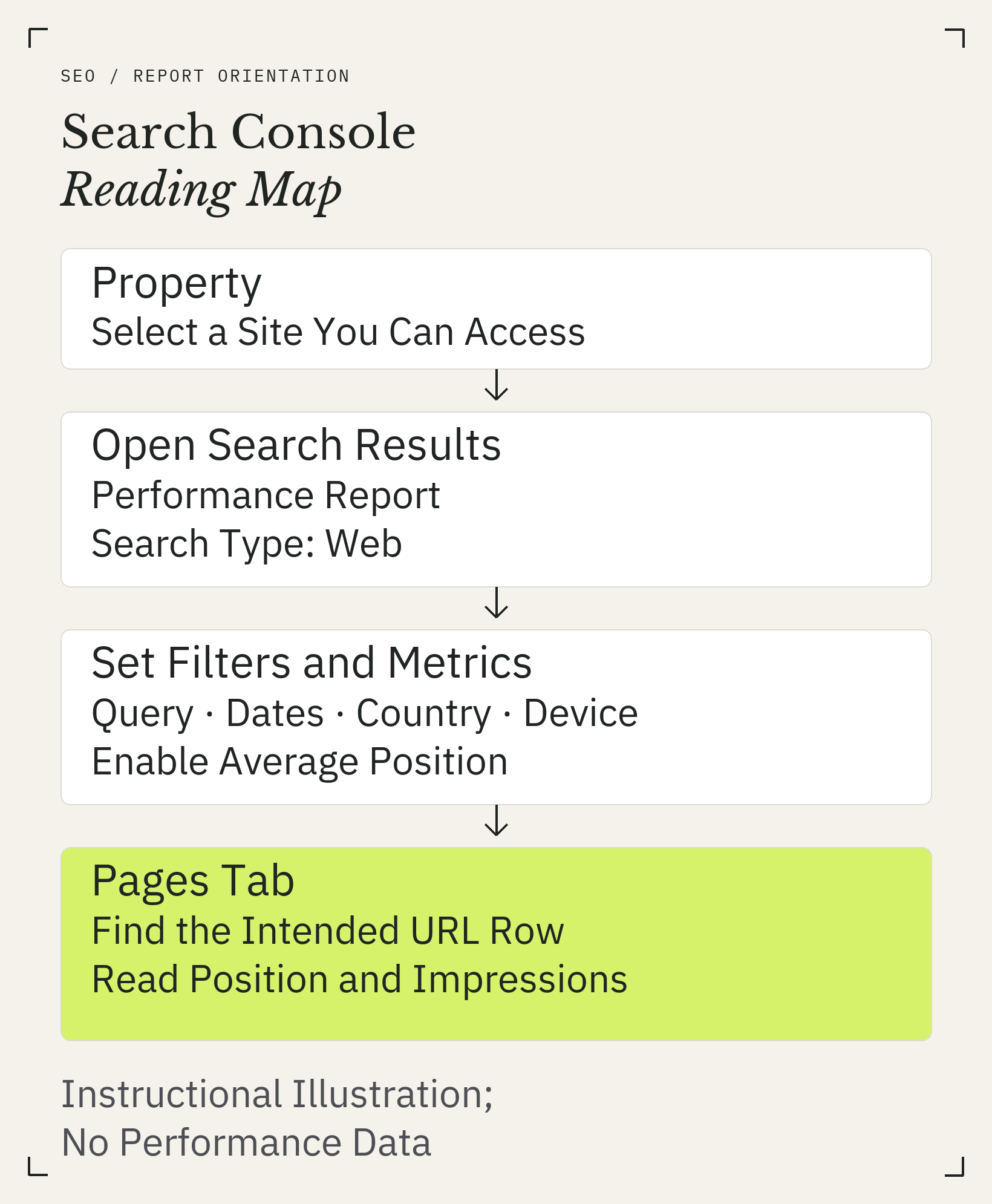
Instructional illustration showing the controls and result location. It contains no performance data and is not a screenshot of a search result.
Open Your Property and Search Results Report
- 1Sign in to Google Search Console with an account that has access to the website. Select the intended property from the property selector. If access is missing, ask the property owner to add you or follow Google’s ownership verification instructions.
- 2Open Performance, then the Search results report. Check the search type: use Web search for this task, choosing Web: text-based where that option is offered.
- 3Enable Average position above the chart. Keep Total impressions visible. An impression is a recorded appearance in search results; the count shows how much exposure accompanies the average.
Google’s Performance report documentation describes the report and its search types. A property represents the website scope you are viewing; a different property may cover a different set of URLs.
Set the Query, Page, Country, Device, and Dates
- 4Choose a date range. Our suggestion for a first check is a complete 28-day period. Check the report’s latest available date and exclude recent dates marked preliminary, then select the preceding 28 days of available complete data. Save the start and end dates. A short period can leave little data once you apply filters.
- 5Open Queries, the tab listing search phrases beneath the chart. Click the row for the full phrase you want to check; this applies that query as a filter. Google explains filtering and row clicks here.
If the phrase has no visible row, choose Add filter > Query > Exact query, enter the full phrase, and select Apply. A “contains” filter can include several queries. If the filtered report is empty, try a wider complete date range or remove other filters. If no reportable data appears, use the public checker below for a snapshot, subject to its allowance. Search Console cannot supply an average for a selection with no reportable data. - 6Open Pages while the query filter remains active. Inspect the returned URLs before selecting your intended page. This helps you spot a different article, product page, or homepage credited with the phrase; duplicate URLs may be credited to Google’s chosen canonical. Click the relevant URL row to apply the page filter.
- 7Add Country and Device filters for the audience you want to inspect, such as United States and mobile. Confirm that the query and page filters remain applied. Record whether a dimension is restricted or includes all available values.
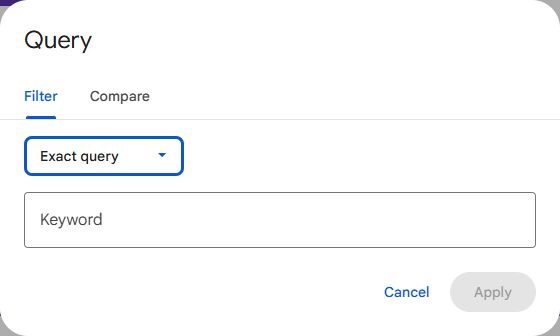
The real Query filter dialog, captured October 10, 2026. Choose Exact query for a single phrase. The field is intentionally empty; no query or performance data is shown. Select the image for the full-size view.
Read the Average Position for That Selection
- 8With the query, country, device, search type, and dates set, reopen Pages if necessary and read the average position value in your intended URL’s row. The current table labels this column Position, after you enable the Average position metric above the chart. This is the average of that page’s topmost recorded positions within the selected scope. It does not promise that the page occupies that numbered slot in a search you run now.
- 9Save the page row’s average and impressions with the settings. A decimal value is expected because the report averages observations. A lower position number indicates a higher position in the results being measured.
Use this fill-in sentence for your own record: “For [query], Google credited [URL] with an average position of [value] across [impressions] impressions for [country/device] during [dates].” This describes a period average.

The real Pages table header, captured October 10, 2026. Position appears at the right after Average position is enabled. The crop excludes all URL rows and performance values; it shows where to read the result, not a measured ranking. Select the image for the full-size view.
Search Console assigns performance data primarily to Google’s selected canonical URL, the representative address it chooses for a page. If the address you expected is absent, inspect the URL shown in the report before concluding that the content received no visibility. Google documents canonical attribution and query-data limits.
Check Your Ranking Without Search Console Access
A public checker lets you search for a keyword and domain without proving ownership of the website. Read its output as an observation within the tool’s supported settings and checked depth. Save the returned URL as well as the position, because another page on your domain may be the result it found.
Seobility’s free Ranking Checker is one option. Its public form has Search term, Domain, Country, and optional Localization fields, plus a Check website ranking button. Seobility documents desktop and mobile checks and a top-20 limit. We inspected the public form in October 2026; our session showed no remaining checks, so we could not test a result.
- 1Check the remaining allowance before entering your phrase in Search term and your domain in Domain. The domain field is optional, but supplying it tells the tool which site to find.
- 2Choose the search market under Country, such as Google.com, and enter a city or state in Localization if needed. Record any device setting offered; if you cannot identify it, mark the device unknown.
- 3If a check is available, select Check website ranking. In the returned results, identify your domain and inspect the listed URL to establish which page the position concerns.
- 4Save the time, settings, returned address, and top-20 depth. If the tool reports no match, record “not found in the checked top 20.” An error or exhausted allowance leaves you without a ranking result.
As checked in October 2026, Seobility lists five checks per day with its free Basic account; the anonymous allowance was not confirmed. Check the tool’s current allowance and depth before use. With any checker, save those limits alongside the result.
What Does Average Position Actually Mean?
Average position summarizes recorded search impressions. At property level, Google uses the site’s topmost result for each impression before averaging. With page-level data, Google averages the topmost position of that specific page across its recorded impressions. The scope matters: a property average can describe a prominent homepage while the page you intended to assess appeared lower.
How Google Calculates an Average Position of 2.5
Google’s public teaching example shows a site appearing at positions 2, 4, and 6 for one query, then at 3, 5, and 9 for another query. Google takes the highest result from each observation:
| Observation in Google’s Example | Site Positions Shown | Position Used for the Property |
|---|---|---|
| First search | 2, 4, 6 | 2 |
| Second search | 3, 5, 9 | 3 |
The calculation is (2 + 3) ÷ 2 = 2.5: the topmost position from each observation. This property-level example combines different queries and leaves the URLs unspecified, so it cannot locate one particular article.
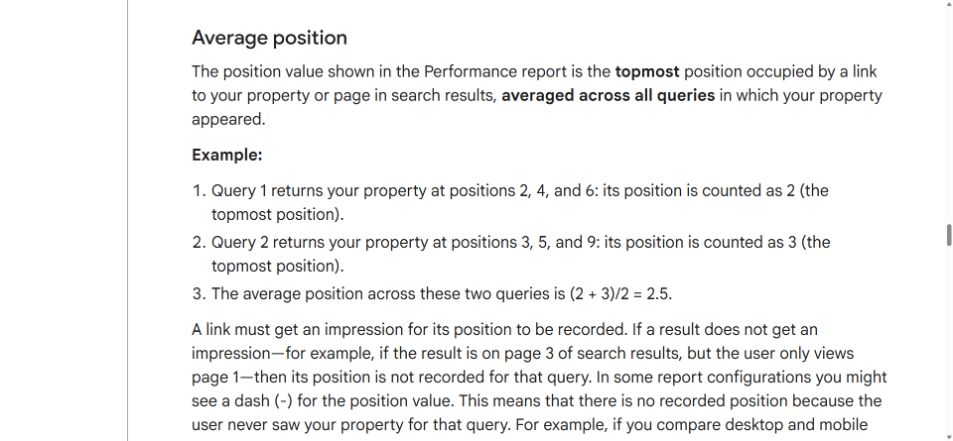
Google’s public metric documentation, captured October 10, 2026. The example averages the topmost position across two queries. Select the image to open it at full size.
A recorded impression contributes a position even without a click. No recorded impression means no position value, rather than position zero. Google also groups some search elements, so position does not count every separate link or measure distance down the screen. Its metric definitions explain these conditions.
Why Your Site’s Average Can Hide a Page’s Position
Without a query filter, an average can combine different searches. The property-level average can use the highest result from any qualifying page. An individual row in the Pages table is already page-specific; clicking that row adds a page filter. Use the intended row and query scope to answer a question about one article and one phrase.
Even the intended Pages row can combine impressions from different times and search contexts within the selected period.
Why Do Google Ranking Checks Show Different Results?
Ranking numbers can differ because they measure different observations or combine them differently. First align the query, URL, location, device, and time. Then check whether you are comparing an average with a snapshot. Those measurements can legitimately disagree after you align the available settings.
| What You See | What to Check | What You Can Conclude and Do Next |
|---|---|---|
| Search Console and a checker show different numbers | Compare the report’s date window with the checker’s timestamp; confirm average versus snapshot. | The difference alone cannot show a rise or fall. Keep separate records and compare each source with its own next check. |
| Your laptop and phone show different results | Record device, location, language, and query spelling. | Context may explain the difference. Repeat under matching settings before interpreting it as movement. |
| A domain checker finds your homepage, while you expected an article | Open the returned URL; inspect Pages for that query in Search Console. | The observation concerns the homepage. Save that address and investigate the intended article separately. |
| Matching checks still disagree | Compare source, collection time, result depth, and any unspecified location settings. | Available settings may not isolate the cause. Retain the discrepancy without declaring either number universally correct. |
Incognito does not eliminate location, language, device, or time effects. Google describes how these factors change results. A manual search is useful for seeing nearby results, but it cannot establish what every potential customer sees.
What Should You Check When Your Page Is Missing?
Separate three states before deciding what to do:
- Not observed in this check: the checker did not find the page within its settings and depth.
- No reportable Search Console data: the selected filters returned no data you can read.
- Not indexed: a separate indexing check reports that the URL is outside Google’s index.
The first two states alone do not establish the third. Use the next checks below to narrow the cause.
| Observation | Next Check | Reasoning and Remaining Uncertainty |
|---|---|---|
| A top-20 checker finds no match | Confirm the domain, query, market, and device; record the depth limit. | The page may fall outside the checked results. Its position remains unknown. |
| Search Console goes blank after filtering | Remove filters one at a time; widen the date range if needed. | A narrow selection can lack reportable data. A wider result answers a broader question. |
| Your expected URL has no row | Inspect other Pages rows and the Google-selected canonical. | Another URL may hold the reported data. Absence of the expected address does not settle content visibility. |
| A query has no visible row | Check page-level data without that query filter and allow for reporting delay. | Google withholds some queries for privacy. An absent row does not establish zero searches or demand. |
| Indexing remains in doubt | Use URL Inspection for the page. | Its index status gives separate evidence; an indexed page is not guaranteed to appear for your chosen query. |
Google documents privacy omissions and reporting delays; recent data may be preliminary. URL Inspection provides the next indexing check. If it identifies a technical problem, move to the relevant SEO audit checks rather than treating the ranking result as the diagnosis.
Compare Your Next Ranking Check Fairly
Save a baseline you can repeat: one query, the observed URL, the source, and every relevant setting. Compare Search Console periods with equivalent Search Console periods, and checker snapshots with later snapshots from the same tool. Keep averages and snapshots separately labeled even when they concern the same page.
Our suggested record is small enough to keep in a spreadsheet:
| Field | Search Console Record | Public Checker Record |
|---|---|---|
| Source and measurement | Search results; average position | Tool name; snapshot position |
| Query and URL | Applied query and page filters | Entered phrase and returned URL |
| Context | Property, search type, country, device | Country, localization, device |
| Time | Start and end dates | Check date, time, and time zone |
| Result and limits | Average, impressions, missing/preliminary data | Position or not found, checked depth, unspecified settings |
For the next Search Console comparison, hold those filters constant and use an equal-length complete period. A change in the average alone cannot identify the cause, and changes in the mix of impressions can still matter within matching filters.
Position alone does not measure visits or business results. Use the separate guide to SEO and website traffic to connect rankings with what happens after people see a result.
Save the conditions with the number: query, page, market, device, time, and method. That gives your next ranking check something useful to compare.