Every schema change should have a reason: correct a fact, meet an applicable requirement, or add a useful description. Inspect what your page already publishes, compare it with the facts and current requirements, then choose what to keep, fix, add, or defer. Accurate markup needs a maintained source.
A green test can leave an important question unanswered. On J6’s public homepage, we found a breadcrumb that Google’s test accepted even though it contained fewer items than Google’s documentation requires.
What Is Schema Markup?
Schema markup is structured data that uses Schema.org terms to describe things on a page and their relationships. It can identify an organization, a product, an article, or a navigation path. That explicit description gives systems information they would otherwise have to interpret from the page’s words and layout.
How Schema.org, Structured Data, and JSON-LD Fit Together
These terms describe different parts of the same setup:
- Structured data is the organized information: an organization’s name, website, and publisher relationship, for example.
- Schema.org supplies the vocabulary, including types such as
Organizationand properties such asname. - JSON-LD is one format for putting that vocabulary into a page, usually inside an
application/ld+jsonscript.
Microdata and RDFa express structured data through HTML attributes, while JSON-LD keeps it in a script block. Google supports all three formats. Its introduction to structured data recommends JSON-LD because it is easier to implement and maintain. Choosing a format does not settle which facts belong in it.
What Schema Can Help With in Search
Accurate markup can help Google understand content and make a page eligible for supported search features, subject to each feature’s requirements. Product information and breadcrumbs are examples. Eligibility still leaves Google to decide what appears for a search.
For Google’s AI Overviews and AI Mode, there is no special schema required for inclusion. Its AI features guidance asks publishers to keep structured data consistent with visible content alongside the usual search requirements. Google does not promise that adding schema will earn a citation in either feature.
Schema works best when the page already makes sense. If people cannot understand the subject or its relationships, improving the explanation is part of semantic SEO.
Check What Your Page Already Publishes
Start with the public URL: your CMS, theme, plugin, or custom integration may already generate the markup you intend to add. Identify what each block describes and where its values come from. Find the editing control before changing the output.
Find Existing Markup Before Adding Another Source
Use this inspection sequence on one representative page:
- 1Run the URL through the Schema Markup Validator. Choose the URL option, enter the public page address, and run the test. Expand the detected items and note their types, identifiers, and important properties.
- 2Check Google’s Rich Results Test. Test the same URL. Record the supported items and issues it reports, including whether the URL could be fetched.
- 3Inspect the page’s markup. Search the source for
application/ld+json. If necessary, inspect the rendered page too: JavaScript can add markup, and Microdata or RDFa can live in HTML attributes. - 4Find the editing control. Check CMS settings, active plugins, and templates, or ask the site’s developer to identify which source generates those fields.
Several blocks can be legitimate. One may describe an organization while another describes an article. Investigate conflicting facts about the same entity instead of treating the block count as a fault. Google’s structured data policies allow multiple items.
Compare the Markup With the Visible Page
Markup should accurately represent the page and its subject. Compare names, authors, prices, availability, dates, identity links, and navigation paths with the public information and maintained business records.
A syntactically correct price can still be stale. A valid author field can still name the wrong person. A generated review rating needs genuine supporting reviews and the applicable eligibility checks.
Record the exact mismatch before editing. “Price differs from the visible offer” gives a developer something to fix. “Needs more schema” does not identify a defect. Broader access or indexing problems belong in an SEO audit.
Choose Markup That Fits the Page and Its Purpose
Choose a type by what the page represents, then check the current documentation for the outcome you want. Schema.org includes vocabulary beyond Google’s supported search features. A type can describe something accurately without producing a particular rich result, so the implementation needs a purpose beyond passing a generator’s checklist.
Match Common Page Types to Relevant Schema
| Page or Subject | Possible Starting Point | Check Before Implementing |
|---|---|---|
| Organization homepage or about page | Organization | Identity, official website, and applicable organization facts |
| Individual editorial article | Article or an appropriate subtype | Visible headline, author, dates, and image |
| Individual product page | Product and applicable offer information | Real product facts and the requirements for the intended product feature |
| A particular business location | An appropriate LocalBusiness subtype | Actual location facts and the subtype’s requirements |
| A page within a meaningful navigation path | BreadcrumbList | An ordered path that helps describe where the page belongs |
Choose the types that describe this page; each row represents a different situation. Follow the linked requirements for the types you select.
Check Current Google Support Before Expecting a Rich Result
Use Google’s structured data feature gallery to confirm support, required properties, and restrictions before promising a search appearance.
Required properties are the minimum specified for the particular Google feature. Include the applicable required properties, then add recommended detail you can verify and maintain. An optional field is no reason to invent a fact.
FAQ markup illustrates why this matters. Google’s May 2026 update says FAQ rich results stopped appearing on May 7, 2026. The existence of FAQPage in a vocabulary does not restore that feature. Useful questions and answers can remain on the page; a Google FAQ rich result is no longer a reason to implement that markup.
Decide What to Keep, Fix, Add, or Defer
Keeping accurate markup is a completed decision when it meets the applicable requirements and still serves its purpose. For changes, identify the mismatch or missing description first. Defer work when the purpose, fact source, or ownership is unresolved, and name the condition that would reopen the decision.

| Decision | What You Have Observed | Check That Makes the Decision Useful | Next Action |
|---|---|---|---|
| Keep | Relevant output matches the facts you checked | Applicable requirements and references remain sound | Preserve it; record which settings maintain it |
| Fix | A field or structure conflicts with facts or requirements | Locate the cause and determine the narrow correction | Change the generating source and retest affected pages |
| Add | A description with a clear purpose is missing | Verify source values; if a Google feature is the goal, check its support and requirements | Add it through the maintained implementation |
| Defer | Facts, purpose, or ownership are uncertain | Identify the missing condition: verified values, a clear purpose, or an implementation owner | Revisit when that condition is resolved |
These are our working categories. One page can need several decisions: keep its identity fields, fix its breadcrumb, and defer an optional expansion.
A Worked Example: From Page Facts to a Schema Decision
We inspected J6’s public homepage on October 10, 2026, and ran one public-URL check in each validator. Google’s check used its smartphone user agent. Google reported the homepage breadcrumb as valid, although it contained one Home item and the documentation requires at least two items. Our proposed action addresses that discrepancy; no change was deployed during this review.
Inspect the Public Page and Its Existing Markup
The J6 homepage identified the business as J6 Venture and linked to its LinkedIn company page. Its JSON-LD graph contained an Organization, a WebSite referring to that organization as publisher, and a BreadcrumbList.
The Schema Markup Validator reported zero errors and warnings: two top-level items, with the organization nested under the website’s publisher relationship. Google’s test reported one valid breadcrumb item. Its only step was Home, pointing to the homepage. The tools’ item counts alone did not indicate missing markup.
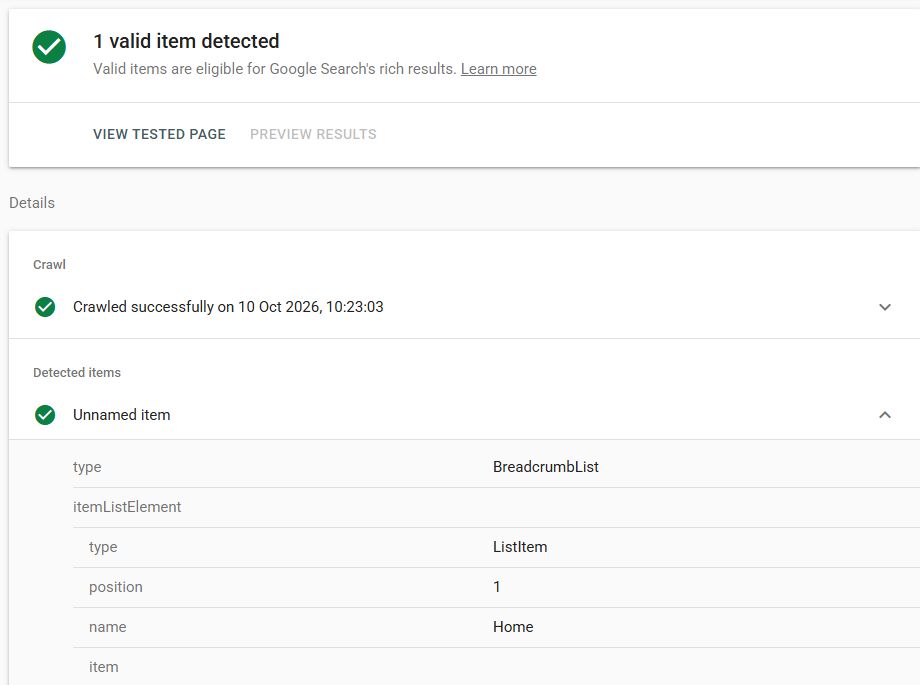
Visible findings: one valid item; successful crawl on October 10, 2026 at 10:23:03 as displayed; type BreadcrumbList; position 1, name Home. This thumbnail records the output before any proposed change. The text above explains the full test result.
Trace the Important Fields to Their Sources
| Observed Field | Supporting Evidence | Decision |
|---|---|---|
Organization name: J6 Venture |
Public navigation and footer use that name | Keep this verified value |
Organization url: J6 homepage |
Public site and homepage link match | Keep this verified value |
sameAs: LinkedIn company URL |
The public footer links to that company URL | Preserve the observed identity link |
WebSite publisher: #org |
The reference resolves to the organization in the captured graph | Preserve the relationship |
| Breadcrumb: one Home item | Captured markup and expanded Google test show that single step | Review against the feature’s documented minimum |
| Generating plugin or template | Public output does not establish the responsible editing control | Locate the source before implementing a correction |
This check covers the named fields; other properties and pages remain outside its scope.
Explain the Decision and Any Proposed Code
The breadcrumb node below is the existing output, formatted for reading. Do not paste this diagnostic excerpt into your site:
{
  "@type": "BreadcrumbList",
  "itemListElement": [
    {
      "@type": "ListItem",
      "position": 1,
      "name": "Home",
      "item": "https://j6venture.com/"
    }
  ]
}
Google’s breadcrumb documentation requires at least two ListItem entries. This node has one: the accepted test result leaves that documented requirement unmet.
Our proposed fix: omit the homepage-only breadcrumb from its generating source, while preserving the organization, website relationship, and appropriate breadcrumbs on interior pages. Adding a second invented step would distort the path. Before removing the node, check whether anything references it and confirm that the change is restricted to the homepage.
Omitting the node needs no replacement snippet. First locate its generating source, which the public inspection did not establish. After implementation, check that the homepage breadcrumb is absent, the intended organization and website output remains, and interior-page breadcrumbs are unchanged. These after-change checks have not been run.
The result supports a maintenance decision. It establishes no ranking loss, penalty, or benefit from the proposed removal. The reason Google’s tool accepted the one-step item remains unknown.
Implement the Decision Through the Right Source
Correct the source that generates the markup. Adding a second block can leave the original problem intact. Choose an editing route that fits the existing setup, keeps values connected to their maintained source, and lets you check the affected pages after saving.
Choose Between CMS Settings, a Plugin, and Custom Code
- CMS or theme settings: use them when they already control the identity, author, product, or page fields you need to change. Check whether a change affects one page or an entire template.
- An existing plugin: use its supported controls when it owns the output. Identify overlap before enabling another generator.
- Custom code: use it when existing controls cannot express the justified change and a developer can maintain the mapping from source facts to output.
JSON-LD can go in the rendered page’s head or body. Use verified values and valid JSON, with explanatory comments outside the code. A generator helps with syntax; check its values against the source of truth.
Check the Published Output After Saving
Back up the settings or code you will change, make the correction, clear affected caches if needed, and inspect the public URL. Confirm that the intended fields changed and unrelated output survived.
Retest the public URL. A passing snippet test does not confirm that the website serves that code. For template changes, inspect representative pages, including an unaffected case: the homepage proposal needs an interior-page check to confirm its breadcrumbs survived.
Understand What Your Schema Tests Establish
Read each test result for the question it answers. The Schema Markup Validator examines extracted markup; Google’s test evaluates supported search features. Neither replaces checking the facts and applicable requirements. Use the result to choose the next check rather than treating a pass as the end of the review.
Use the Schema Markup Validator and Rich Results Test for Different Questions
Both tools accept code or a URL. Choose URL testing to examine what the tool retrieves from the page; use code testing to assess a proposed snippet before deployment.
| Result | Useful Interpretation | Next Check |
|---|---|---|
| Schema validator reports no errors | It accepted the extracted markup under its checks | Compare important values with facts and feature requirements |
| Rich Results Test detects no supported items | This test found no supported feature item | Check the intended type, current support, and fetched output |
| A critical issue is reported | The item fails a requirement evaluated by the test | Correct the supported source value or structure and retest |
| Only noncritical issues are reported | Additional information may improve the item | Add it only when applicable and verifiable |
| An item is reported valid | It passed the checks reported by that tool | Review remaining requirements and page quality |
| The URL could not be fetched | The test did not acquire the page successfully | Resolve access before treating a code-only pass as deployment evidence |
Separate a Valid Result From Eligibility and Actual Display
Google’s test documentation explains that a valid result does not guarantee display. Quality policies, page access, and the requirements for the particular feature still matter.
Keep three questions separate in your report:
- 1What does the page publish? Use the observed output and dated URL test.
- 2Does it meet the applicable requirements? Combine automated findings with a fact and documentation review.
- 3What happened in search? Use observed search appearance and Search Console data for that page and feature when available.
A successful test fetch does not establish that Google’s search index has processed that version.
Keep the Markup Accurate and Check Its Results
Keep each important field connected to a maintained source and a person responsible for changes. Recheck output when that source or the implementation changes. Measure the outcome the work was meant to support, while separating deployment success from search appearance and business results.
Assign an Owner and Update Fields When Their Sources Change
Our suggested record is short: page, intended purpose, field source, editing control, owner, and last verified date. Add the event that requires another check, such as a price update, author change, rebrand, or template release.
Identify the source of truth for changing values: which system owns the price, availability, author, or organization details? Verify that changes reach both the visible page and its markup. Recheck the output after a plugin or theme change.
For J6, record the homepage URL, the breadcrumb proposal, and the October 10 observation. The source and implementation owner remain to be identified; retest after an approved, scoped correction.
Review Search Appearance and Useful Outcomes
Where available for the feature, use Search Console’s enhancement reports to track detected items and issues. Check search-appearance performance when a report exists for that feature, then examine visits or conversions that serve the page’s intended job.
Keep the implementation date and other material page changes in the record. A later increase in clicks can coincide with a markup change without establishing that markup caused it. Comparisons also need comparable query, device, and time context.
An organization identity cleanup may have no dedicated rich-result performance measure. In that case, accurate maintained output is the immediate acceptance criterion; do not invent a traffic target. Our SEO timeline framework explains how to separate implementation, search progress, and commercial outcomes.
Choose Your Next Action
Choose one page and record the field or structure, the fact or requirement it should match, and the source that maintains it. Give its owner a decision they can verify, whether that means preserving accurate output, making a scoped change, or resolving a missing condition first.
For J6’s homepage, that means keeping the checked identity fields and handing the breadcrumb proposal to the implementation owner. The deliverable is a clear decision with an acceptance check.